
World Settings
Each world has its own settings page. It controls the parts of the world you switch on and off — AI help, optional entity types, the look of your editor — and it is where you back the world up or delete it.
Accessing settings
Section titled “Accessing settings”Click Settings pinned at the bottom of the world sidebar — it’s always visible, even when the sidebar scrolls. The AI chip at the top of the sidebar is a shortcut too: clicking it opens this page at Smart Detection.
The page lists its sections down the left:
| Section | What it controls |
|---|---|
| Demo Data | Generate example entities and relationships, or clear the ones you generated |
| Writing Environment | The fonts, sizes, spacing and colours of your prose editor |
| Smart Detection | Whether and how entity mentions are spotted in your writing |
| Chat | The floating chat bubble, and whether chat may read your scenes in full |
| Economy | Five optional entity types for trade and resources |
| Inventory | What characters carry, wear and wield |
| Export & Import | Saving the world to a file, and reading one back in |
| Danger Zone | Deleting the world |
Demo Data
Section titled “Demo Data”Shows whether this world has generated demo content and which wizard choices it was built from. Generate Demo Data adds a starter cast and their connections; once generated, you can clear them again from the same place. Clearing only removes demo content — nothing you created yourself.
Writing Environment
Section titled “Writing Environment”Build your own editor preset: font family (including OpenDyslexic), size, line spacing, and colours. See Writing Environment for the full guide.
Smart Detection
Section titled “Smart Detection”Smart Detection spots names of entities in your writing and suggests linking them.
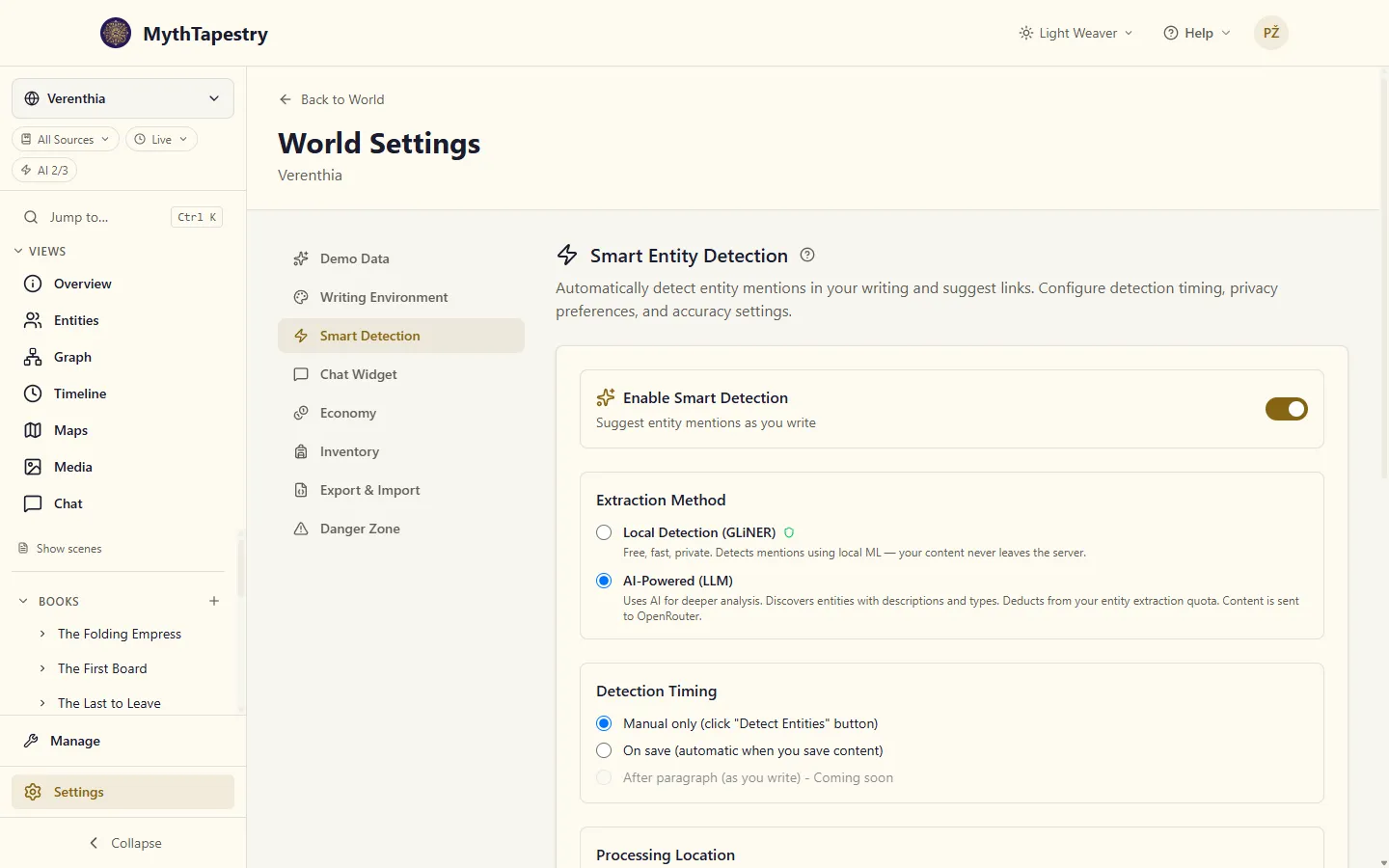
| Setting | Options | What it does |
|---|---|---|
| Enable Smart Detection | on / off | Master switch |
| Extraction Method | Local Detection (GLiNER) / AI-Powered (LLM) | GLiNER is free, fast and stays on our server; AI finds more and describes what it finds, but uses your entity extraction allowance and sends the text to OpenRouter |
| Detection Timing | Manual only / On save | Manual waits for you to click Detect Entities; On save runs each time you save |
| Confidence Threshold | 50%–95%, starting at 70% | Higher means fewer, surer suggestions; lower means more to review |
| Suggest New Entities | on / off | Also suggest names that aren’t entities yet, in a separate New Entities list you can create from in one click |
| AI Relationship Suggestions | on / off | Makes Detect Relations in the editor sidebar propose connections between entities in a scene; uses your relationship extraction allowance |
GLiNER vs. AI extraction
Section titled “GLiNER vs. AI extraction”| Aspect | GLiNER | AI |
|---|---|---|
| Speed | Fast | Slower |
| Quota usage | None | Uses feature quota |
| External calls | None — runs on our server | Sends text to the AI provider |
| Common names | Good | Good |
| Domain-specific entities | May miss | Better accuracy |
| Context-dependent (e.g. “The Crown” as faction) | Weak | Strong |
Floating Chat Widget shows a chat bubble on every world page, so you can ask about your world without leaving what you’re doing. The full Chat page in the sidebar is always there whether or not the widget is on.
Let chat read my writing decides when chat sends your scenes and chapters to the AI in full. Off — the default — chat works from your summaries and short extracts around the words a search matched, and reads a whole scene only when you ask it to in a message. On, it reads a scene or chapter whenever a question needs it, so “what happens at the end?” gets an answer from the Epilogue itself rather than an offer to read it. See what chat reads.
Economy
Section titled “Economy”Enable Economy adds five entity types for tracking trade: Resource, Facility, Market, Storage and Trade Route. Switching it off hides them from the type picker but doesn’t delete anything you’ve already made.
Inventory
Section titled “Inventory”Enable Inventory & Equipment adds an Inventory type plus the Carries and Equips relationships, for tracking what characters have on them. See People and Things for how carried items follow their owner on a map.
Export & Import
Section titled “Export & Import”Save the world as a file you keep, or read one back into an empty world. See Taking Your World With You.
Danger Zone
Section titled “Danger Zone”Delete World removes the world and everything in it, permanently. You type the world’s name to confirm. See Deleting a world.
AI model preferences
Section titled “AI model preferences”Which model powers each AI feature is set on your profile, not per world. See Profile & AI Preferences and AI Model Selection.