
Creating Entities
Entities are the building blocks of your world. A character, location, faction, magic system, or any concept you want to track is an entity in the knowledge graph.
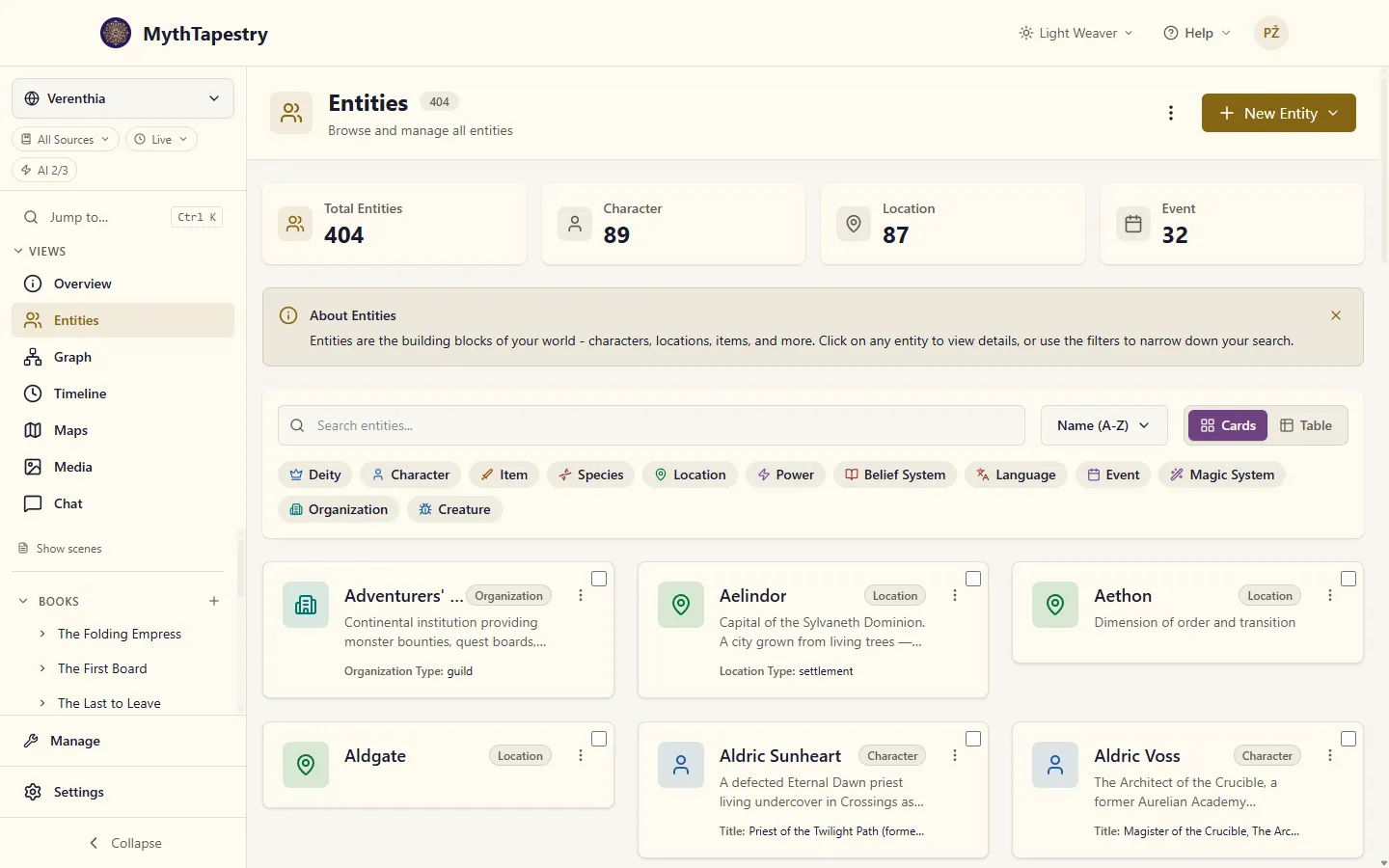
Create a single entity
Section titled “Create a single entity”- Go to Entities in the world sidebar.
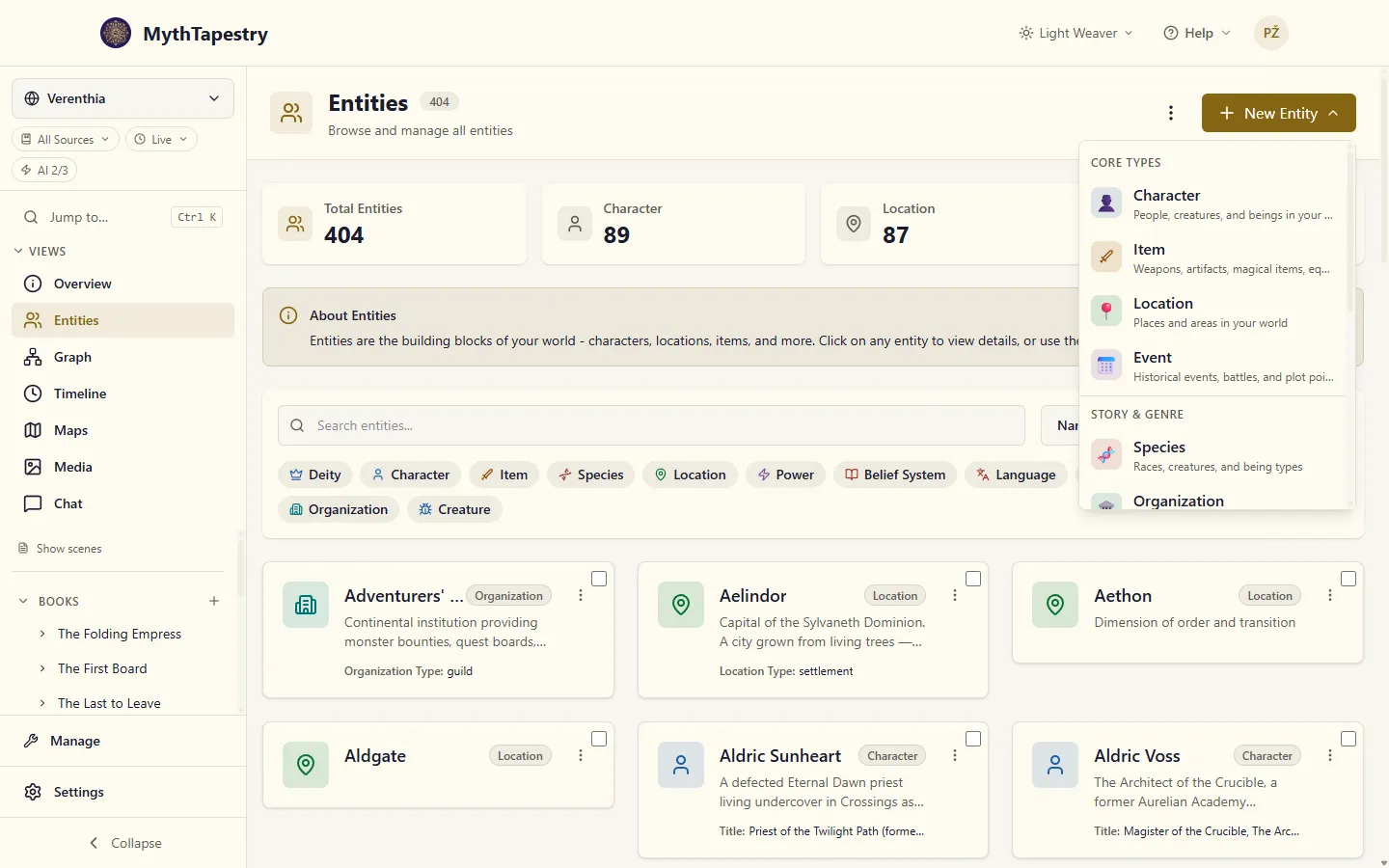
- Click New Entity.
- Choose an entity type. The menu groups them the way your world does — Core Types first, then groups like Story & Genre, each type with a one-line description.
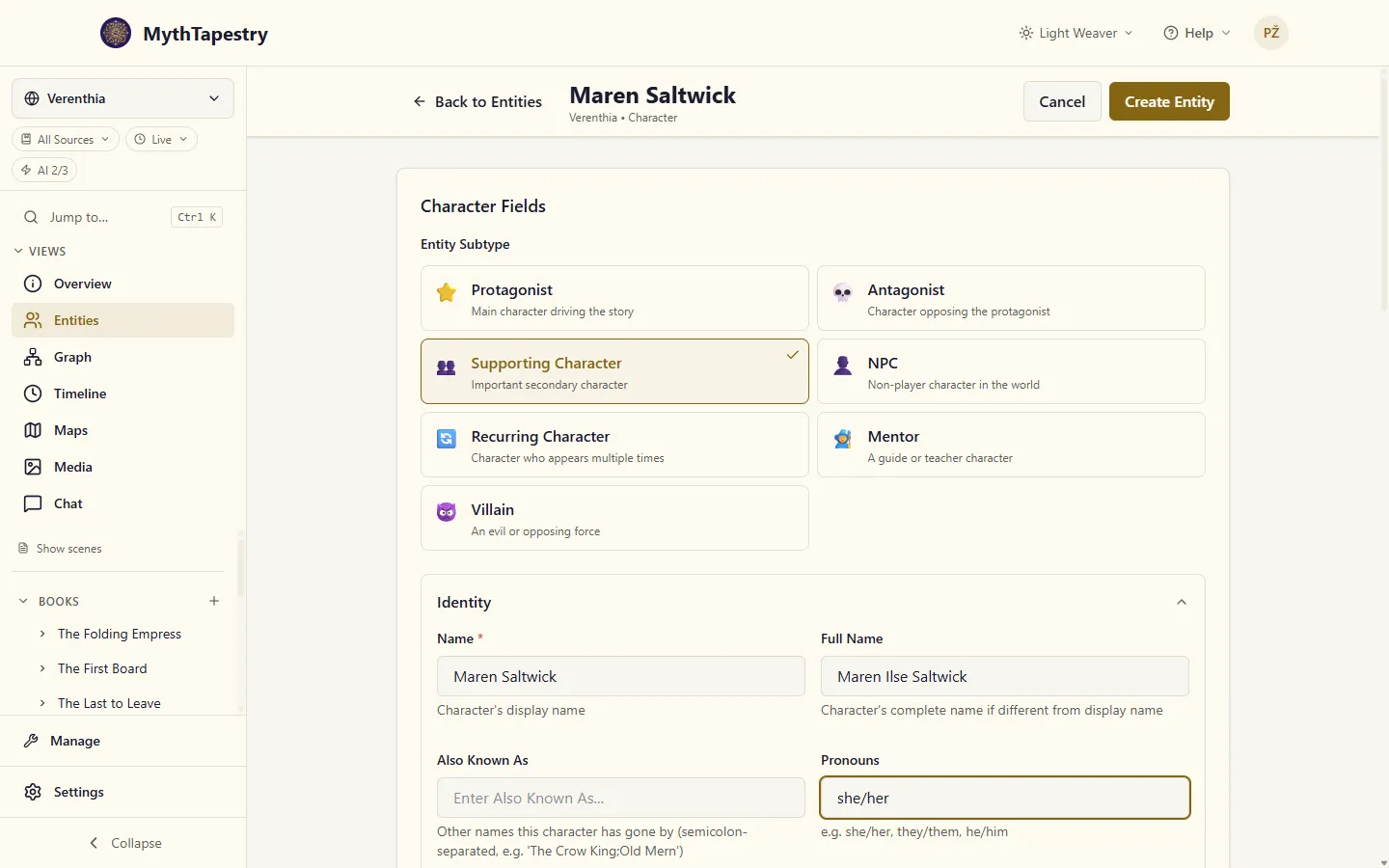
- If the type has subtypes, pick one from the cards at the top of the form.
- Enter a name (required).
- Fill in whatever else you know. The fields come from the entity type, so a Character asks for pronouns and a birthplace, a Location for its terrain.
- Click Create Entity.
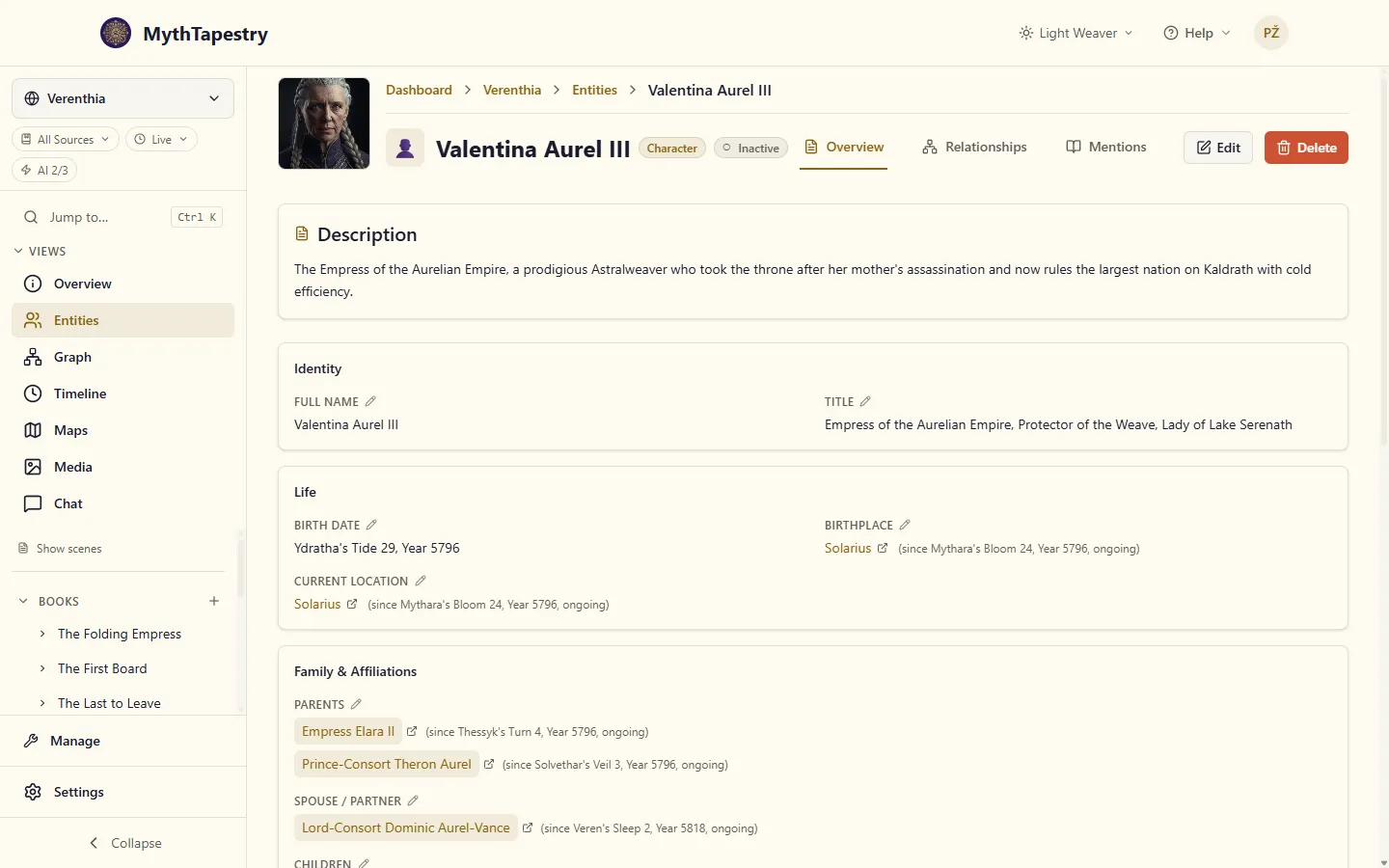
Your entity is now part of the knowledge graph and can be linked to other entities and mentioned in content. MythTapestry opens its page straight away, with a short Maren Saltwick created note, so you can carry on with relationships or a portrait without hunting for it in the list.
Beside its name the page shows its type and, if you chose one, its subtype: Maren Saltwick reads Character · Supporting Character. A status chip appears only when the entity isn’t simply active, so a draft or an archived entity says so, and a character’s own Status: Alive field isn’t contradicted by a second “Active”. Sections with nothing filled in yet are left out, so a new character without a family doesn’t show an empty Family & Affiliations box.
Its page has tabs across the top: Overview, Relationships, Mentions, Timeline, History, Conflicts and Memories, plus Maps on a location. When the window is too narrow for all of them, the ones that don’t fit go under More at the end of the row; the tab you’re on always stays in view. With a tab focused, the left and right arrow keys move between them.
Entity types
Section titled “Entity types”Each entity has a type that determines its available fields, layout, and behaviour. The types available in your world depend on the choices you made during the creation wizard and which domains are enabled.
Core types (always available):
| Type | Typical use |
|---|---|
| Character | People, NPCs, historical figures |
| Location | Cities, regions, buildings, landmarks |
| Event | Battles, treaties, cataclysms |
| Item | Weapons, artifacts, important objects |
Common types (enabled via wizard complexity tier):
| Type | Typical use |
|---|---|
| Organization | Guilds, governments, factions |
| Species | Races, creature types, lineages |
Genre-specific types (enabled by genre and wizard answers):
| Type | Typical use |
|---|---|
| Magic System | Magical frameworks, power sources |
| Technology | Inventions, machinery, science |
Domain-gated types (require specific domain enablement in world settings):
| Type | Domain | Typical use |
|---|---|---|
| Resource | Economic | Raw materials, commodities |
| Facility | Economic | Buildings, production centres |
| Market | Economic | Trading hubs, exchanges |
| Trade Route | Economic | Commerce paths, shipping lanes |
| Power | Magical | Supernatural abilities, forces |
| Belief System | Cultural | Religions, philosophies |
| Language | Linguistic | Languages, dialects |
Entity subtypes
Section titled “Entity subtypes”Some entity types have subtypes for finer categorisation. For example, a Character might have subtypes like Protagonist, Antagonist, NPC, or Historical Figure.
The subtype picker appears automatically when a type has subtypes. It supports two modes:
- Compact dropdown — for types with few subtypes
- Card grid — shows icon, label, and description for each option
Some subtypes may be hidden by default based on your world’s genre and complexity settings. When any are, a Show all (N hidden) link appears beside the subtype heading (or Show N more options under the dropdown); click it to reveal them, and Hide advanced to tuck them away again.
The entity form
Section titled “The entity form”The create/edit form is dynamically generated from the entity type’s schema and layout configuration:
- Tabs group related sections (e.g. Overview, Details, Metadata)
- Sections within tabs contain field groups
- Fields render based on their type — text inputs, rich text editors, entity reference pickers, date selectors, colour pickers, and more
The form respects visibility rules — fields can be shown or hidden based on subtype selection, other field values, or enabled features.
Fixing one field
Section titled “Fixing one field”You don’t need to open Edit and hunt for the field you want. On an entity’s page, the filled-in fields below the header have a small pencil next to their name. Click it and the Edit page opens at that field, already on the right tab, with its section expanded and the cursor in it. Spotted a typo in Aria’s Biography? Pencil, fix, Save.
The name, status, portrait and description have no pencil; change those with Edit. The pencils are hidden when the entity can’t be edited, for instance when its type has been deprecated.
How data is stored
Section titled “How data is stored”| Category | What it includes | Storage |
|---|---|---|
| System fields | name, description, status | Top-level entity properties |
| Subtype | Selected subtype ID | Top-level entity property (subtype_id) |
| Custom fields | All type-specific fields | Custom fields dictionary |
| References | Entity references, location references | Separate references object |