Profile & AI Preferences
Your profile page contains account settings and AI model configuration that applies across all your worlds.
Accessing your profile
Section titled “Accessing your profile”Click your initials at the right of the top bar, then Profile settings. The page has four tabs:
| Tab | What it holds |
|---|---|
| Profile | Your name, email, plan, and when you joined |
| Security | The ways you can sign in — Google, email and password — and unlinking one you no longer use |
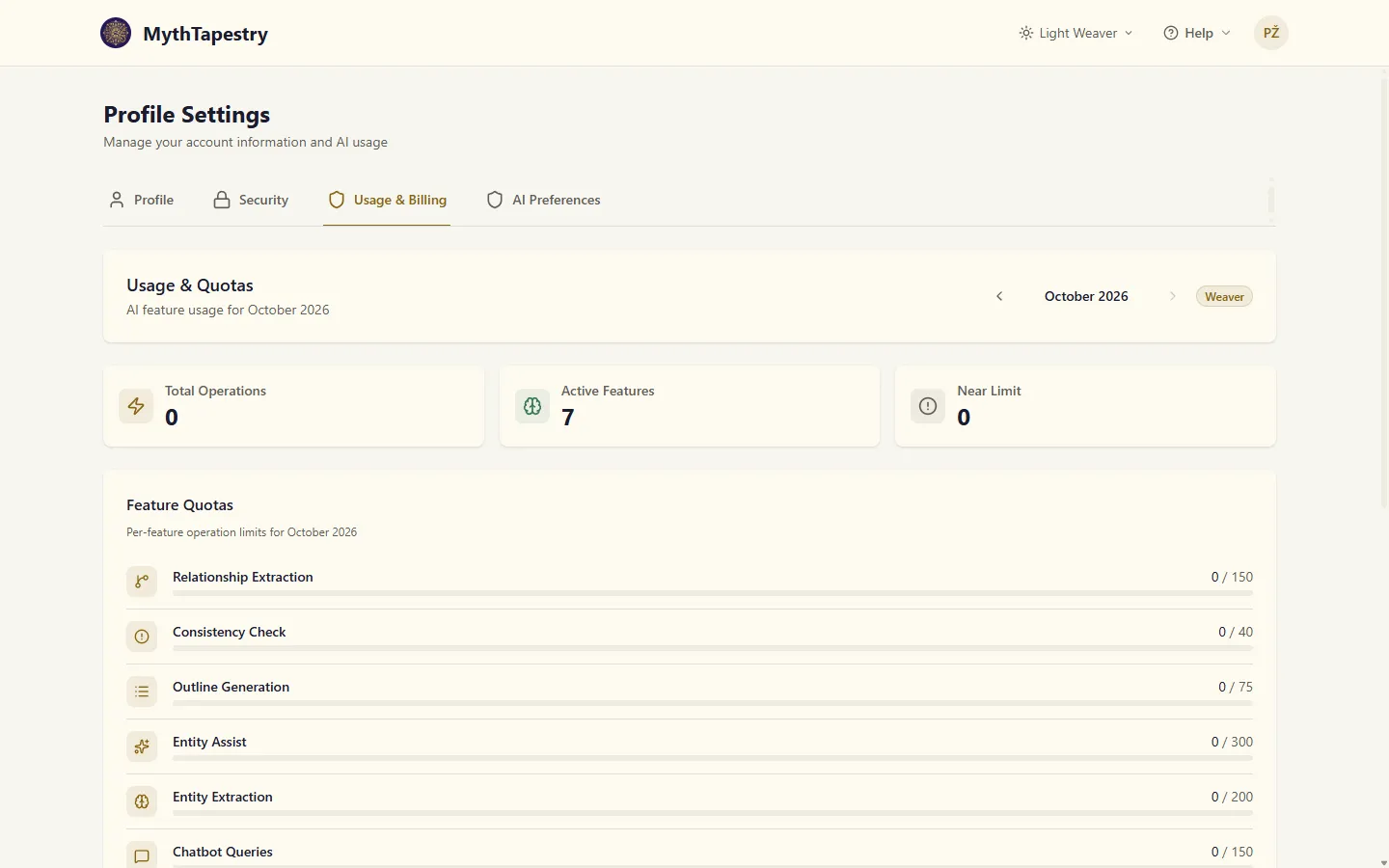
| Usage & Billing | How much of each AI feature you’ve used this month, and your subscription |
| AI Preferences | Which model powers each AI feature |
AI model selection
Section titled “AI model selection”MythTapestry’s AI features are entirely optional. You can use the platform without enabling any AI functionality. Some smart features — like entity detection via GLiNER — run locally without any external AI calls.
When you do choose to use AI-powered features, they are accessed through OpenRouter. On the AI Preferences tab you can:
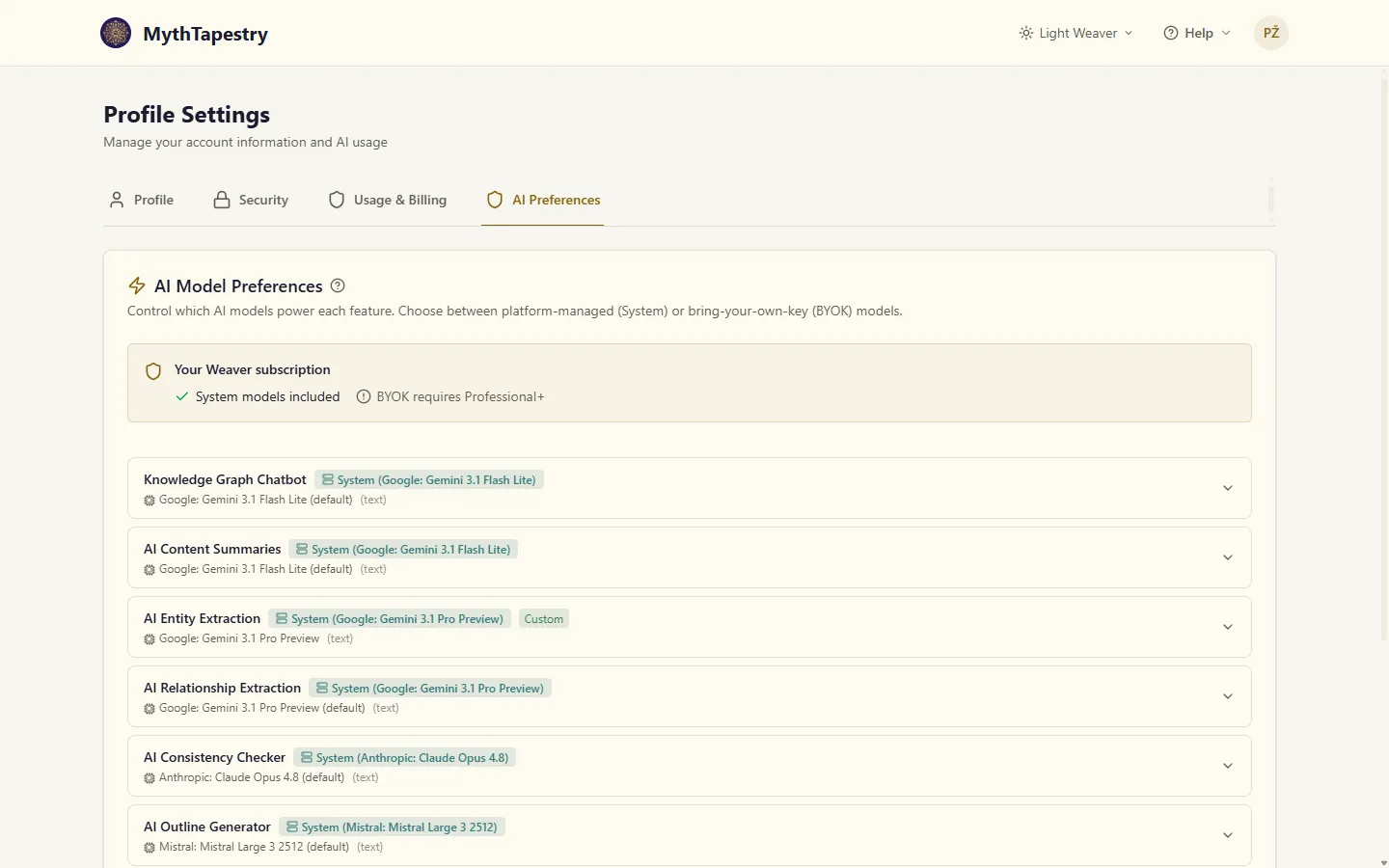
- Choose a preferred model for each AI feature (summaries, entity extraction, chat, etc.)
- Bring your own key (BYOK) — on Mythwright, optionally provide your own OpenRouter API key
How much of each feature’s quota you’ve used is on the Usage & Billing tab.
How model selection works
Section titled “How model selection works”The system picks a model using this priority:
- Your preference — if you’ve selected a specific model for a feature, that’s used first.
- Feature default — each feature has a configured default model.
- Cheapest available — falls back to the cheapest system-available model that supports the required capability (text, vision, etc.)
Usage quotas
Section titled “Usage quotas”Each AI feature has its own monthly allowance. The Usage & Billing tab shows how much of each you’ve used, with arrows to step back through earlier months.