
Read Aloud
Some days your eyes are done before the chapter is. Some scenes only show their rhythm when you hear them: the line of dialogue that’s one beat too long, the paragraph where three sentences start with She. Read aloud speaks your book in your device’s own voice, sentence by sentence, and highlights each sentence on the page as it goes.
It works in the reader, for you and for anyone you’ve shared your world with.
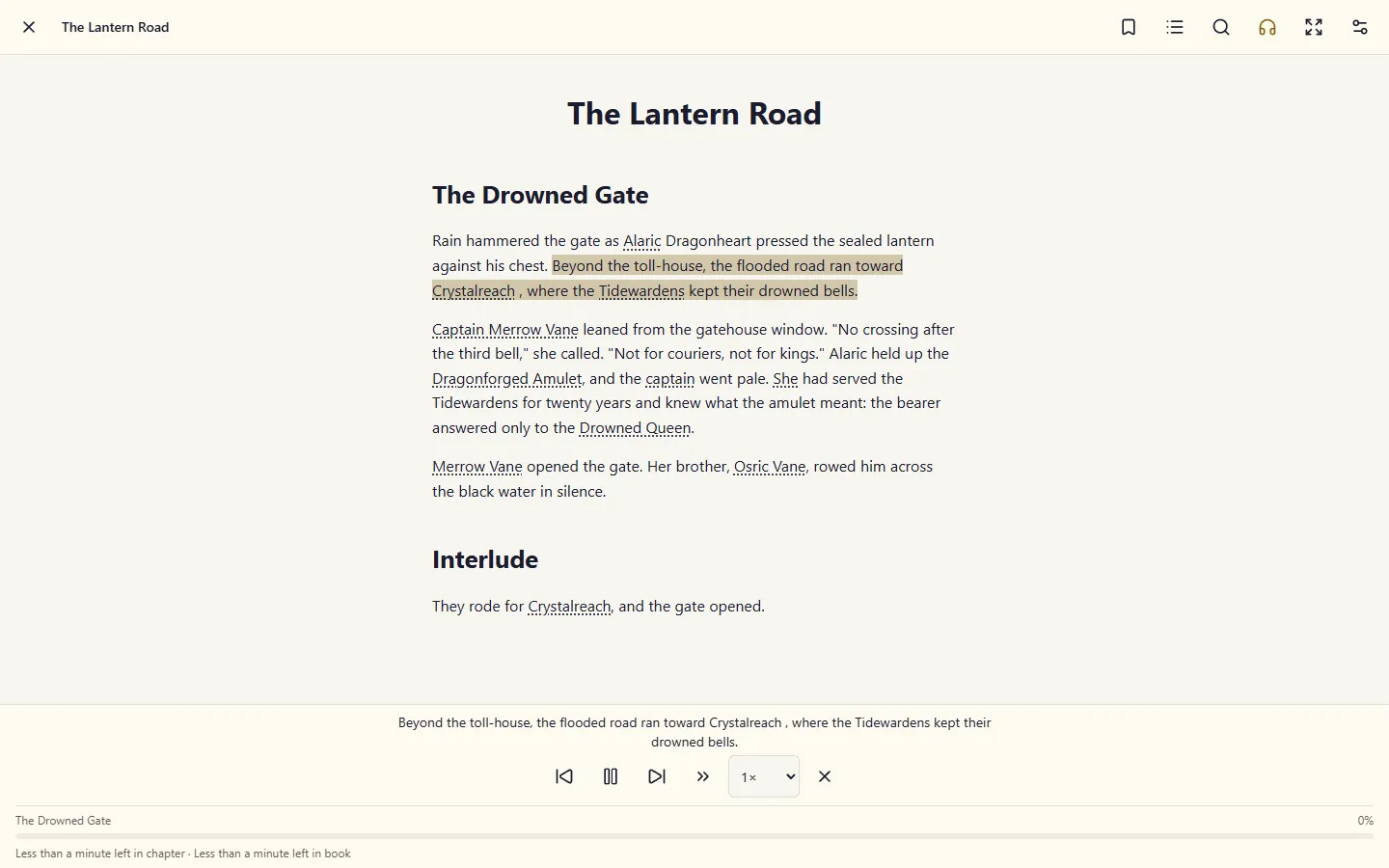
Listening
Section titled “Listening”-
Open a book in the reader and find the paragraph you want to start from.
-
Tap the headphones in the top bar. Reading starts at the top of the screen, from the sentence you were looking at.
-
The page follows the voice: in scroll mode the text moves up as the voice reaches the bottom of the screen, and in page mode the page turns. A sentence that runs over onto the next page is read in two parts, with the page turning between them, so the words you hear are always the words you can see.
The player sits at the bottom of the reader and shows the sentence being read, so you can follow it even when the highlight is hard to see. Its controls:
- Pause and Play. Play starts the paused sentence again from its beginning, so you never come back in mid-phrase. If you’ve turned away from it, the reader takes you back there first. After the last sentence of the book, Play starts again from the beginning.
- Previous sentence and Next sentence, for the line you missed or the one you’d rather skip.
- Next chapter jumps to the start of the next chapter and reads on from there.
- Speed, from 0.5× to 3×. A new speed applies straight away, starting from the beginning of the current sentence.
- ✕ stops reading and closes the player. Closing the reader stops it too.
Read aloud carries on from scene to scene and chapter to chapter until the book ends. While it’s speaking, your screen stays awake.
Choosing a voice
Section titled “Choosing a voice”Voices come from your device, so what you hear depends on what your phone, tablet or computer has installed. Choose one under Reading settings → Read aloud, along with the reading speed:
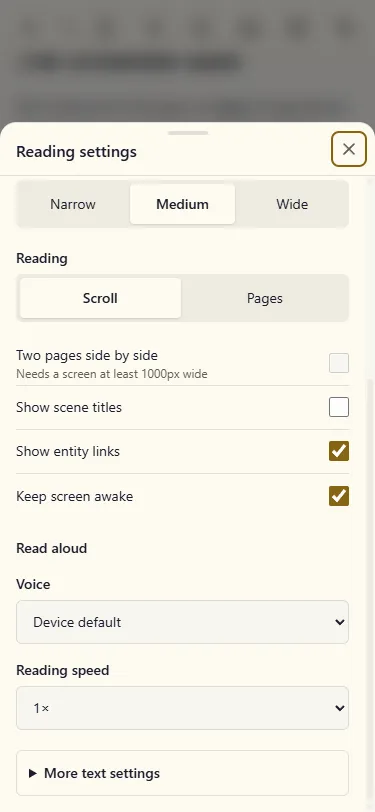
Voices in your own language are listed first. Device default uses whichever voice your device prefers. Your choice is saved to your account; on a device that doesn’t have that voice, the device’s default is used instead.
When the voice stops
Section titled “When the voice stops”Read aloud reads the words of your scenes. Part and chapter headings are skipped; the chapter you’re in is always shown at the bottom of the reader.
If the headphones are greyed out
Section titled “If the headphones are greyed out”The headphones are greyed out when your browser has no voices to read with. Tap them and the reader explains why. Most devices can add voices in their settings:
- Windows: Settings → Time & language → Speech, then add a voice.
- macOS: System Settings → Accessibility → Spoken Content → System voice → Manage Voices.
- Android: Settings → Accessibility → Text-to-speech output. Install a speech engine or language there.
- iPhone and iPad: Settings → Accessibility → Spoken Content → Voices.
Then reload the reader.