
Creating a World
A world is the top-level container for everything in MythTapestry — entities, content, relationships, calendars, and settings all live inside a world. Click Create World on My Worlds to start. Three numbered steps set the world up; once it exists, two more screens help you fill it in.
The world creation wizard
Section titled “The world creation wizard”Step 1: Basic info
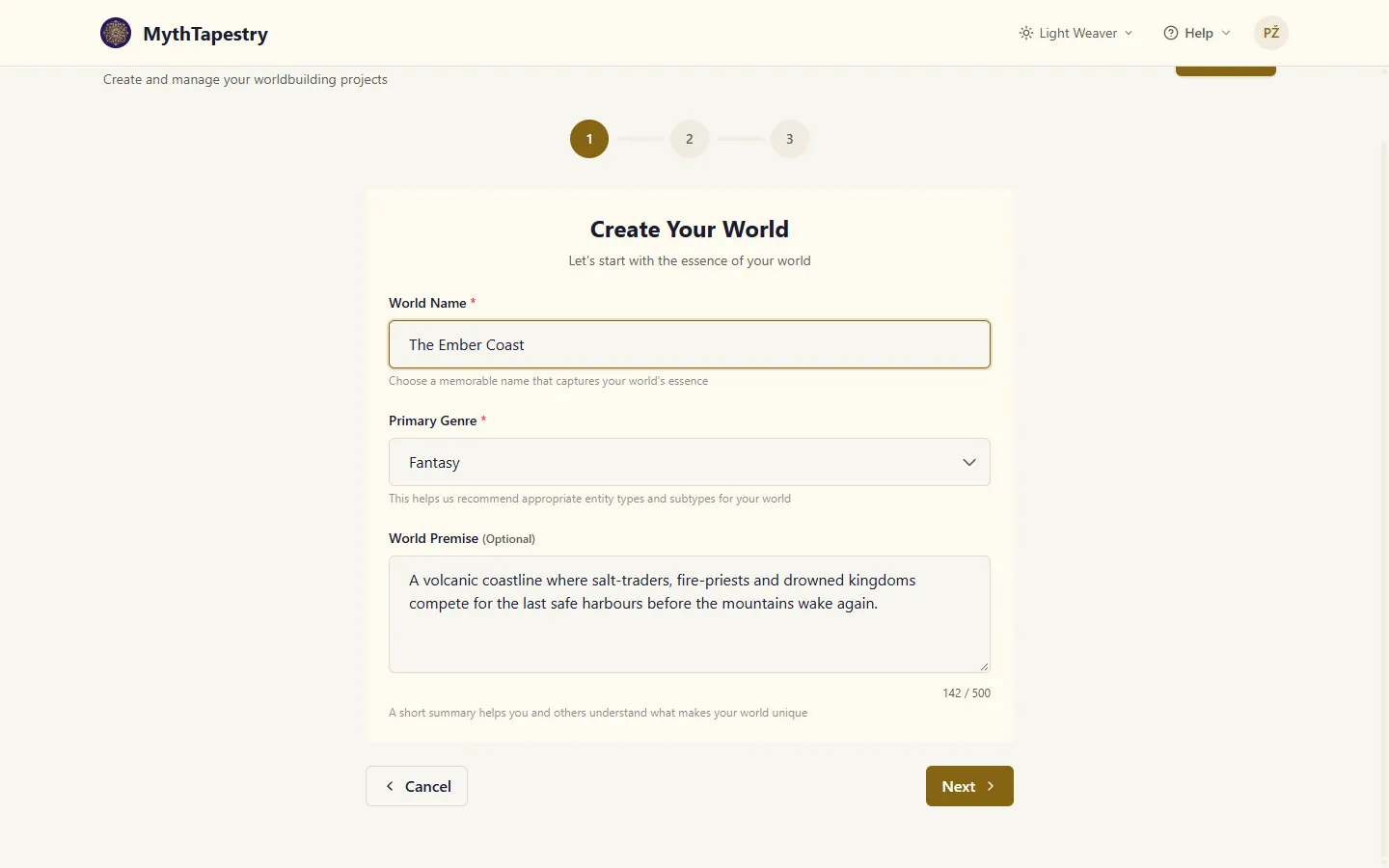
Section titled “Step 1: Basic info”- Enter a world name (required).
- Choose a primary genre: Fantasy, Science Fiction, Historical, Modern, or Custom Mix.
- Optionally write a world premise (up to 500 characters) — a brief description of your world’s core concept or hook. It becomes the world’s description, shown on its overview and editable later under Edit World; each line you write is a paragraph.
The genre you choose affects which entity types and subtypes are recommended in the next step.
Step 2: Setup mode
Section titled “Step 2: Setup mode”You have two paths:
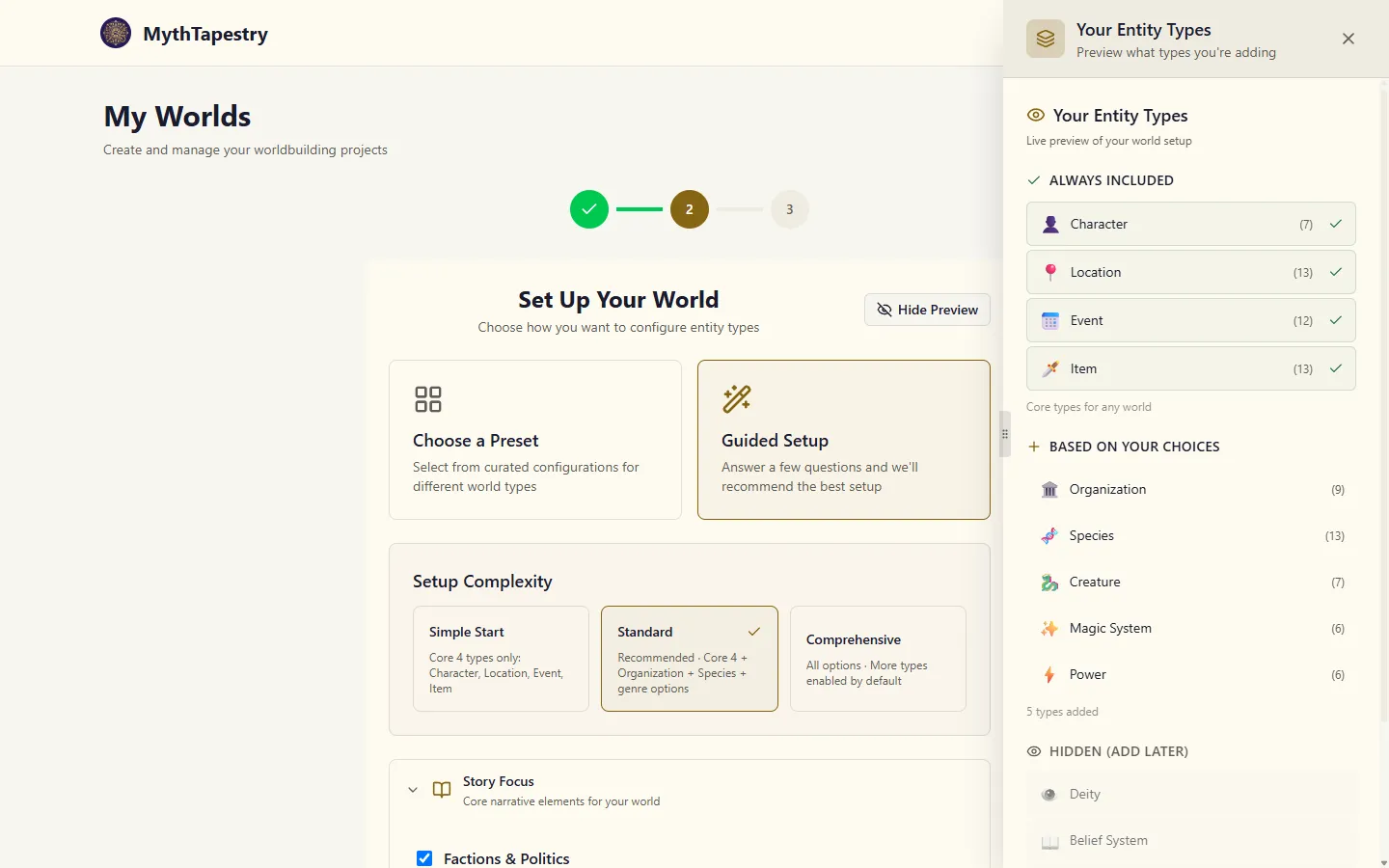
Preset configuration — Choose from curated world presets filtered by your genre. Each preset shows the entity types it includes and a description of its focus.
Guided wizard — Answer questions organised by theme (Story & Narrative, World Structure, Social & Political, Supernatural/Technology, etc.) to build a custom entity type selection. Each question you check adds relevant entity types.
Before answering questions, choose a complexity tier:
| Tier | What it includes |
|---|---|
| Simple | Core 4 types only: Character, Location, Event, Item |
| Standard (recommended) | Core 4 plus Organisation, Species, and genre-appropriate options |
| Comprehensive | All options, more types enabled by default |
A live preview panel on the right shows the entity types you’ve selected so far, grouped by category, with subtype counts. Types highlight when you hover over questions. Hide Preview folds the panel away if you want the room.
Step 3: Preview & create
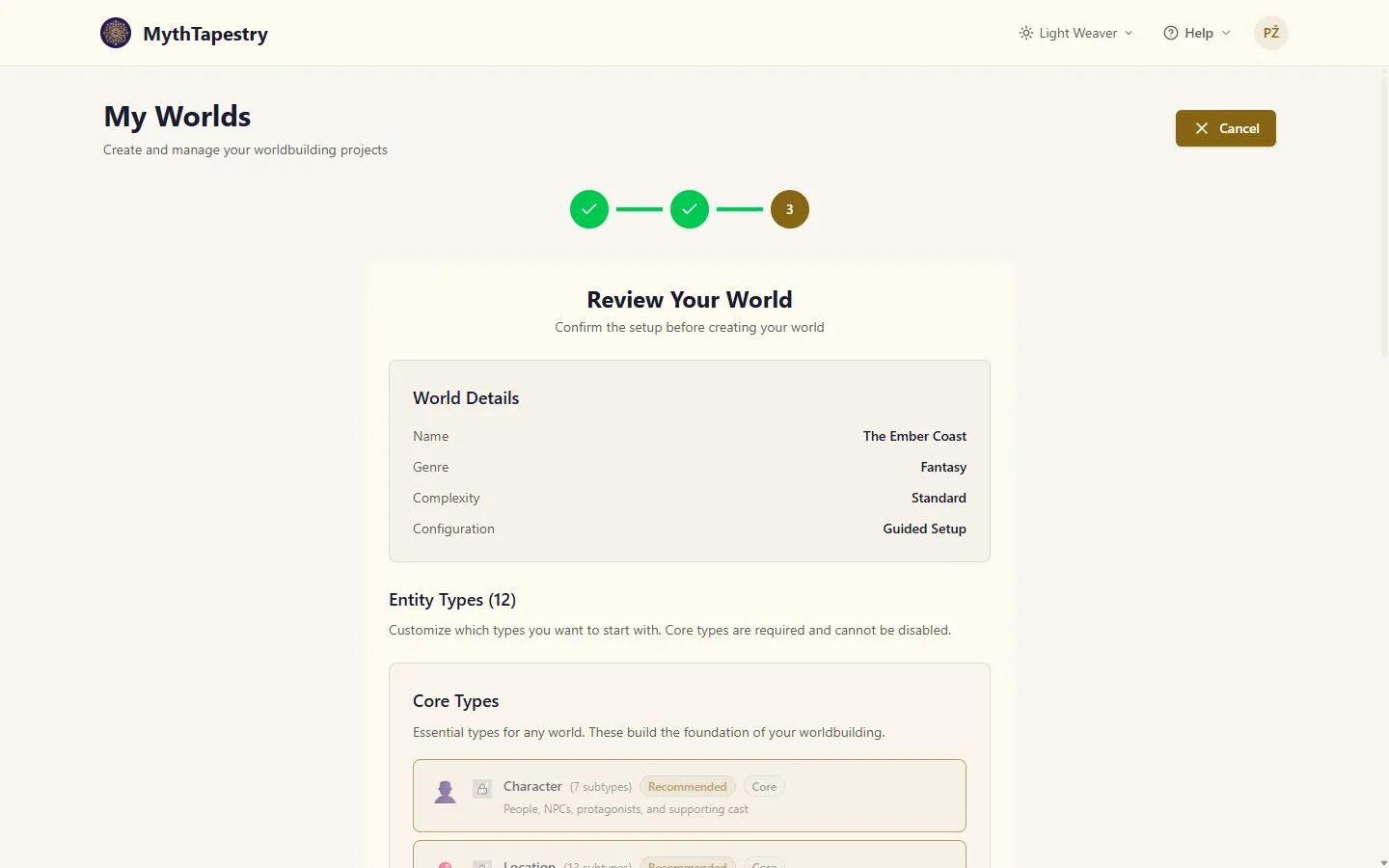
Section titled “Step 3: Preview & create”Review everything before creating:
- World name, genre, and complexity level
- All enabled entity types, grouped into categories (Core, World Structure, Social & Organisations, etc.)
- You can toggle non-core types on or off — core types (Character, Location, Event, Item) cannot be disabled
- Subtype visibility is noted — subtypes are filtered based on your genre, complexity tier, and wizard answers
Click Create World to proceed.
Step 4: Choose how to start
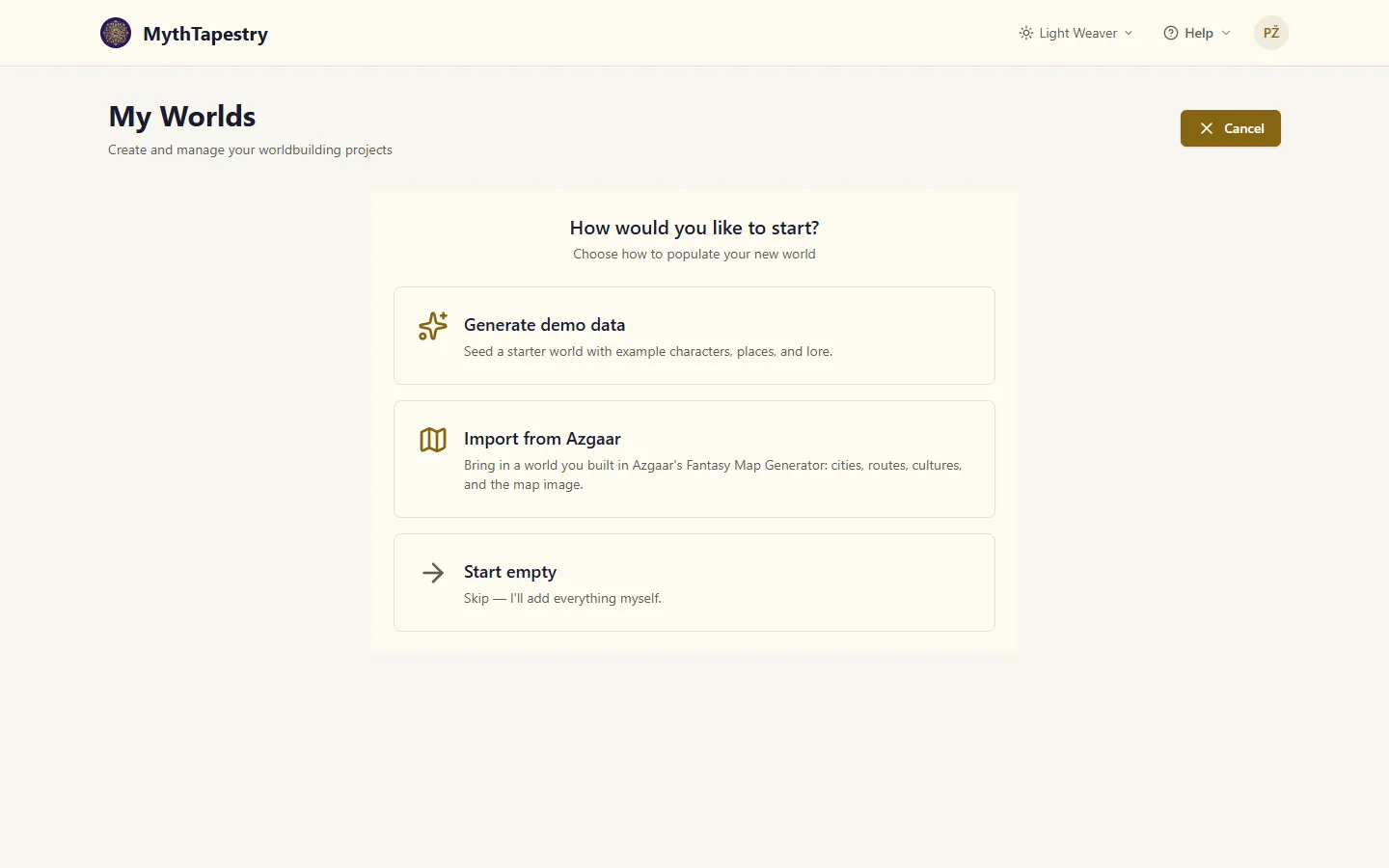
Section titled “Step 4: Choose how to start”Once the world exists, you choose how to fill it in. There are three ways to begin:
- Generate demo data — MythTapestry creates example entities and relationships so you can explore the app immediately.
- Import from Azgaar — bring in a world you already mapped in Azgaar’s Fantasy Map Generator: its cities, nations, provinces, cultures, religions, and trade routes become real places and connections — complete with the political web of alliances, wars, and borders — and the map picture becomes a map background. See Import from Azgaar.
- Start empty — skip starter content and build everything yourself.
If you choose Generate demo data, what gets generated depends on your genre:
- Fantasy: Characters with backstories, kingdoms, magical objects, family connections
- Sci-Fi: Characters with specialisations, star systems, technologies, hierarchies
- Historical/Modern: Appropriate entities for the genre
The generation shows a progress bar that walks through its phases (selecting a template, generating entities, establishing relationships, finalising) and lists what is being prepared. It takes a few seconds. Skip Demo Data abandons it and leaves the world empty.
Step 5: Success & next steps
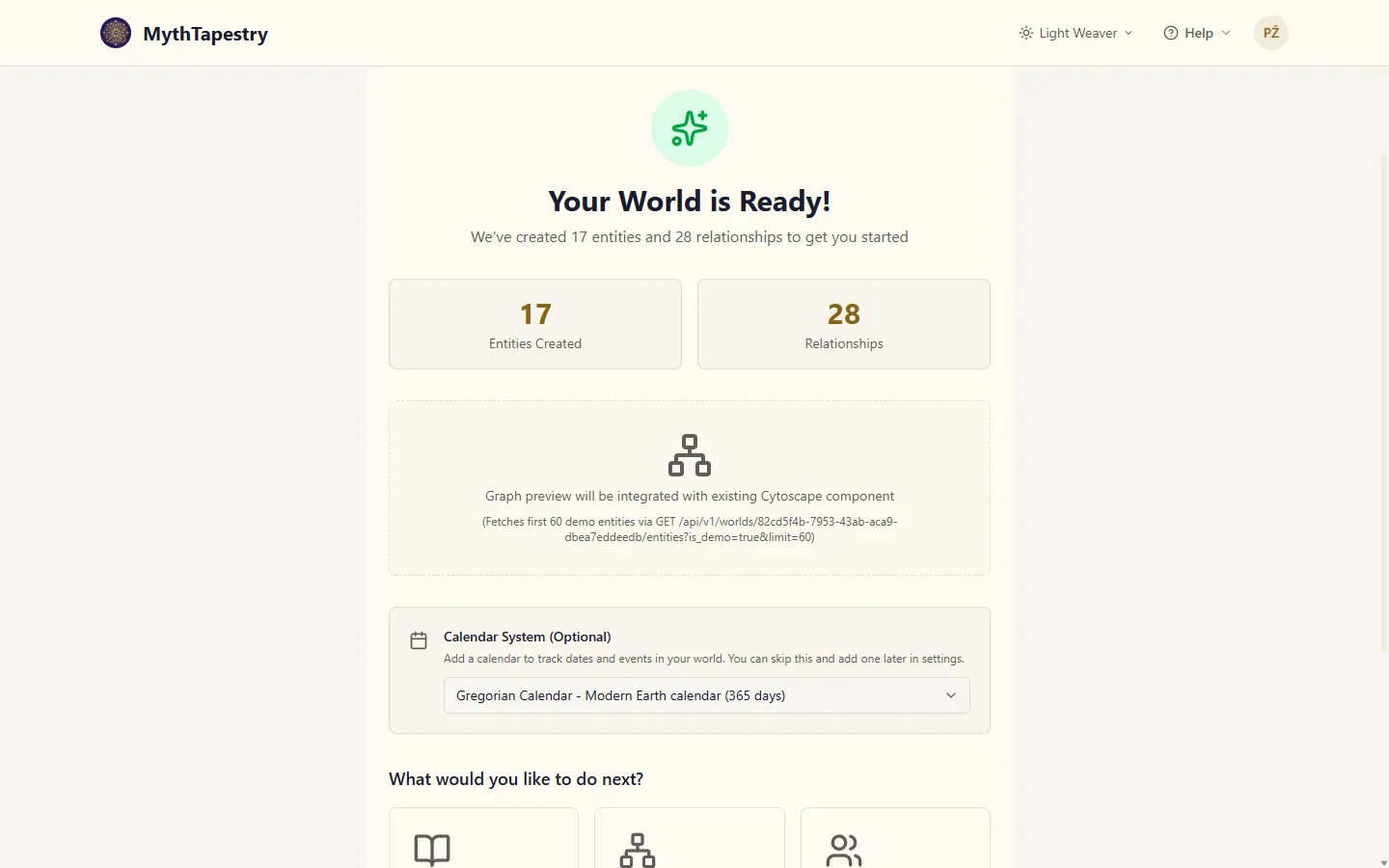
Section titled “Step 5: Success & next steps”After creation, the success page shows:
- Stats: How many entities and relationships were created
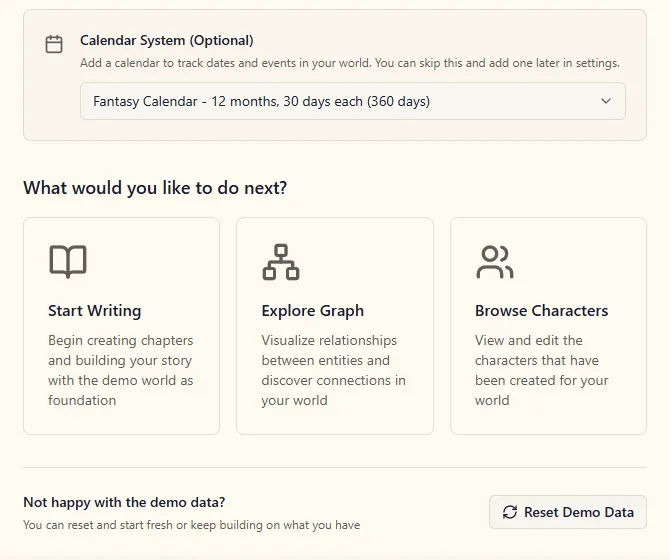
- Calendar: Your world already has a Standard Calendar (Gregorian months, 365 days, no leap years). Keep it, or pick another to replace it; the one you pick becomes the world’s default. A fantasy world starts on Fantasy here.
- Standard — Keep the calendar already set up
- Gregorian — Modern Earth calendar with leap years
- Fantasy — 12 months of 30 days (360 days)
- Custom — Opens a calendar creation flow (see Creating Calendars)
- Three starting paths:
- Start Writing — Go to the writing editor
- Explore Graph — Open the knowledge graph visualisation
- Browse Characters — View created character entities
If you generated demo data, Reset Demo Data at the bottom of the page clears it again.
What gets set up
Section titled “What gets set up”During the wizard, MythTapestry creates:
- The World record with your name, genre, premise, and wizard configuration
- Entity type settings — which types and subtypes are enabled, based on your wizard answers
- Subtype visibility — a 3-layer system (genre-based → complexity-based → question-driven) determines which subtypes appear
- Encyclopedia domains with genre-appropriate article stubs (see below)
- Demo entities and relationships in the knowledge graph (if not skipped)
- A calendar system (if selected)
Default relationship types, content types, and other defaults are always available regardless of wizard choices.
Encyclopedia domains
Section titled “Encyclopedia domains”During onboarding, MythTapestry automatically creates encyclopedia domain containers with starter article stubs. These give you a ready-made knowledge base structure that matches your world’s genre and scope.
Core domains (always created)
Section titled “Core domains (always created)”These domains are seeded for every world:
| Domain | Fantasy title | Sci-Fi title | Articles (standard) |
|---|---|---|---|
| Geography | Realms & Lands | Worlds & Systems | Overview, Notable Locations, Climate & Environment |
| History | Ages & Eras | Timeline & Epochs | Overview, Major Eras, Pivotal Events |
| Cosmology | Laws of the World | Universal Constants | Only at comprehensive complexity |
Domain titles and descriptions adapt to your genre — for example, Geography becomes “Realms & Lands” in fantasy but “Cities & Regions” in modern settings.
Wizard-triggered domains
Section titled “Wizard-triggered domains”Additional domains are created based on your wizard answers:
| Wizard question | Domain created | Example articles |
|---|---|---|
| Factions & Politics | Kingdoms & Factions | Major Powers, Alliances & Rivalries |
| Non-Human Peoples | Peoples & Species | Sentient Species, Origins & Homelands |
| Noble Houses | Houses & Lineages | Great Houses, Inheritance & Succession |
| Magic Systems | Magic & the Arcane | Schools & Traditions, Magical Artifacts |
| Gods & Religion | Gods & the Divine | Major Faiths, Sacred Sites & Rites |
| Economy & Trade | Commerce & Trade | Trade Routes & Markets, Currencies |
| Languages & Culture | Tongues & Traditions | Languages & Scripts, Customs & Daily Life |
| Technology & Science | Crafts & Engineering | Key Inventions, Innovators & Institutions |
How complexity affects domains
Section titled “How complexity affects domains”Your chosen complexity tier controls how much starter content is generated:
| Tier | Articles per domain | Domain splitting |
|---|---|---|
| Simple | 1–2 stubs | No splitting |
| Standard | 2–3 stubs | No splitting |
| Comprehensive | 3–5 stubs | Large domains split into focused sub-domains |
At comprehensive complexity, some domains split into more focused sub-domains. For example:
- Factions becomes Kingdoms & Realms + Politics & Power
- Magic becomes Schools of Magic + Magical Artifacts & Materials
- Religion becomes The Pantheon + Rites & Sacred Places
Working with seeded domains
Section titled “Working with seeded domains”After world creation, your seeded domains appear in the Encyclopedia section of the sidebar. Each domain contains article stubs — placeholder content units with suggested titles and brief descriptions.
You can:
- Edit any article stub to fill in your lore
- Delete articles or entire domains you don’t need
- Create new articles within a domain
- Create entirely new domains from the Encyclopedia section
Deleting a world
Section titled “Deleting a world”From My Worlds, click Delete on the world’s row, next to Continue (or Open, for a world with nothing in it yet). On a phone it’s just the bin icon. Or, from inside the world:
- Go to Settings in the world sidebar.
- Scroll to the Danger Zone.
- Click Delete World.
Either way you then type the exact world name to confirm and click Delete World. Only a world’s owner can delete it, so worlds shared with you have no Delete.