
Sharing Your World
Once a canon says this is the official version, you can hand that version to other people. Sharing works through invite links: you share a canon, send the link, and whoever opens it can join your world as a reader — they see the books and lore inside that canon, beautifully readable, and nothing beyond it.
Your drafts, your other sources, your notes: invisible. Readers can’t edit anything. And because a canon is a lens rather than a copy, anything you add to a shared source reaches your readers the moment you write it.
Sharing a canon
Section titled “Sharing a canon”-
Curate first. Open Manage → Canon and check the canon’s source list — readers will see exactly those sources. A spoiler-safe share usually means a dedicated canon like Books 1–2 only.
-
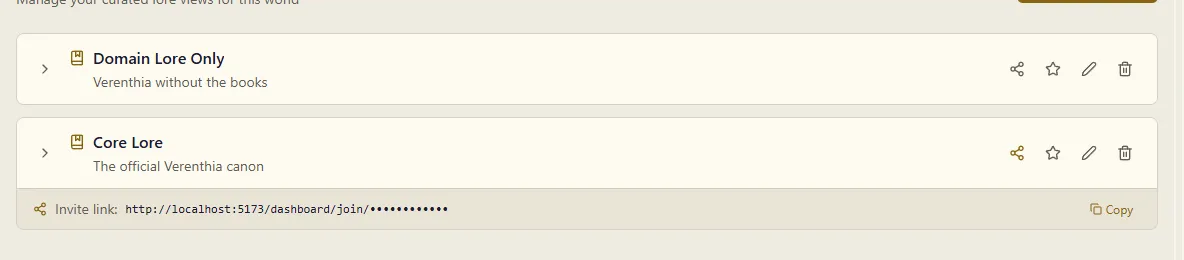
Click the share icon on the canon’s card. An invite link appears in a banner under the card.
-
Copy the link and send it to your readers — there’s no public listing; only people with the link can find your world.
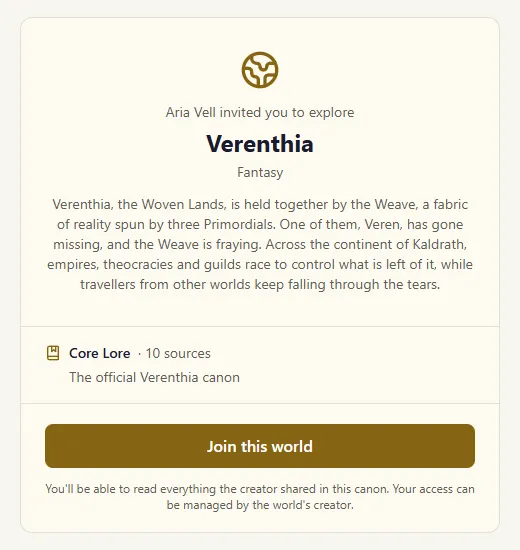
Anyone who opens the link (they’ll need a free MythTapestry account) sees a preview — your world’s name, genre and description, the canon’s name and description, how many sources it holds — and a Join this world button.
Open your own link to check it and the preview says This is your world, with an Open your world button in place of Join: you already have everything a reader would get.
You can also open your own world’s reading view. Its header says Your world, unfiltered, because you see every source, not only one canon’s, and Back to editing takes you back to your world. To check exactly what a reader sees, look at the canon’s source list.
What readers experience
Section titled “What readers experience”After joining, the world appears for them under Worlds you’ve joined on their Worlds page. It opens as a reader’s view of your world with four tabs — no editor, no settings, no machinery:
- Library — the shared books and domains as a library: chapters and parts to browse, each with Read (or Continue · 42% once they’ve started) to open it in the reader. Readers get scroll or page mode, contents, bookmarks, search, read aloud, and a place that follows them between devices. Where they are in the Library is kept in the address, so Back, reloading and a shared link all land in the same place.
- Entities — the cast and places of your world, browsable and searchable. Each entity opens with the same layout you designed for it, showing only what appears in the shared sources.
- Maps — your maps, to pan, zoom and scrub through time. See Maps for readers below.
- Chat — your world’s chat assistant, answering from the shared canon alone. A reader can ask about a character and get answers drawn strictly from what you’ve shared — never from unshared drafts or later books.
Readers can:
- Browse and read everything inside the shared canon’s sources
- Explore the entities that appear in those sources and the connections between them
- Look at your maps and follow your world across its own calendar
- Ask the chat assistant questions, answered only from the shared canon
- Hold subscriptions to more than one of your canons (say, Core Lore and a later Full Series) — their view is the union of what they’ve joined
Readers can’t:
- See sources outside the canon — unshared books simply don’t exist for them, down to the entities that appear only there
- Move a pin, redraw a border, or change a map in any way
- Edit, comment on, or export anything
- See your other canons, settings, or anyone else’s access
Maps for readers
Section titled “Maps for readers”The Maps tab lists every map in your world, each titled by the place it depicts — Aldermoor, The Kingdom of Vaelen, Blackspire Keep. If your world has only one map, the tab opens straight to it.
A map behaves for a reader almost exactly as it does in view mode for you:
- Pan and zoom to explore, and click a pin to open that character or place in the Entities tab.
- Scrub the timeline at the bottom to move through your world’s own calendar. Borders shift, characters move between cities, ghost markers trace journeys in progress — the whole history you’ve recorded, in their hands.
- Toggle image layers from the panel in the corner: fade the political overlay off to read the terrain beneath it.
What’s on the map is filtered to the canon they joined, the same as everything else. A garrison that only appears in an unshared book leaves no pin behind, and a border you drew in a later draft doesn’t show.
Managing your readers
Section titled “Managing your readers”Once someone has joined, a Readers section appears at the bottom of the Canon page, listing everyone — who they are, which canon they joined through, and when.
Remove revokes a reader’s access to the whole world, across every canon they joined, and existing links won’t let them back in. Use it and they’re gone; there’s no partial removal.
Stopping sharing
Section titled “Stopping sharing”Click the share icon again on a shared canon and confirm. The invite link goes dark immediately — new visitors see “this link isn’t active” — but readers who already joined keep their access. Removing them is the explicit act above, never a side effect.
If you share the same canon again later, the original link comes back to life, so links you’ve already sent start working again.